
In this post, I’m going to see how the ESP Matter Light Switch example works, or doesn’t work, with iOS.
By the end of this post, I hope to have demonstrated the Matter Light Switch. I’ll be using Matter-over-Thread and Matter-over-WiFi. I will use an ESP32-H2 for the Thread device and an ESP32-C3 for WiFi.
Developer Setup
My setup is Windows in combination with WSL. I’ll be flashing the code onto an ESP32-H2 with the intention of using Thread.
I already have the esp-idf and esp-matter SDKs installed on my Ubuntu WLS, so I just warm them up.
cd /esp/esp-idf/
. ./export.sh
cd ../esp-matter
. ./export.sh
I have an ESP32-H2 plugged into my Windows machine with a USB cable. To expose the ESP32-H2 to WSL, you can follow this handy guide:
https://developer.espressif.com/blog/espressif-devkits-with-wsl2/
Memorize these commands, especially the “attach” as you’ll use it most often. Once I have shared my ESP32-H2, I find I need to attach it to WSL quite often, using this command. The busid values change.
usbipd attach --wsl --busid 4-4Light Switch Example
The example I’m looking at in this post is from espressif and can be found here
/esp-matter/examples/light_switchTo compile the sample, you must first set the target. It my case, it’s an esp32-h2
idf.py set-target esp32-h2You can then compile it
idf.py buildOnce successfully compiled, flash it onto the device (remembering to share the USB using usbipd command)
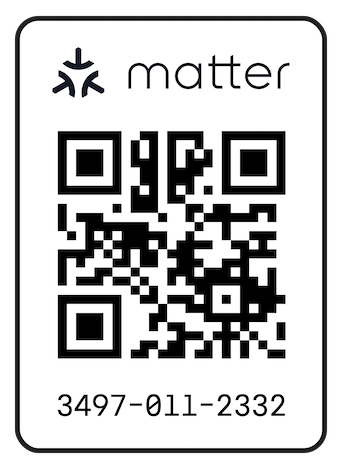
idf.py flashYou can then go through the pairing process. On the espressif website, you’ll find the QR code you can use with iOS.
https://docs.espressif.com/projects/esp-matter/en/latest/esp32/developing.html
It will look like this:

No Support for Light Switches
After adding the device to iOS Home it just reports that it’s not actually supported!
This was something of a surprise.

Matter lets you have more than one controller for an individual device, so I paired the device with Home Assistant too (using the “Turn on Pairing Mode”)
Even Home Assistant has nothing to offer from the device after adding it in.

Why can’t you do anything?
It took me a while to understand why the light switch didn’t do anything, but I think I got my head around it.
Essentially, Matter devices work in two ways.
The first way is that the matter devices talk to a controller. This is like iOS Home or Home Assistant.
The second way is that the matter devices talk directly to each other, without anything in between. This is called Binding and it’s the way the Light Switch works.
We have the Light Switch commissioned into our Matter network, but we haven’t *bound* it to anything!
If we click the Boot button on the ESP32-H2, to “toggle” the light switch, we can observe the issue.
If we return to the output using idf.py monitor, we can see what is happening:

So what do we do now?
Enter the chip-tool!
We need to find a way to Bind our Light Switch to a Light.
At this time, iOS, Android and Home Assistant offer no Binding support at all. So we need to use something else.
Thankfully, the connecthomeip SDK offers something called chip-tool.
Setting up the chip-tool itself is outside the scope of this post.
As the chip-tool runs on Linux and needs Bluetooth, I run mine on a Raspberry Pi. It can be run on Window’s WSL2, but involves custom Linux kernels and stuff. RPi is easier. You can see my setup here.
Aziz, Light!
The keen-eyed reader will be quick to point out that if a Matter binding is between two devices, we need two devices!
The obvious candidate is a Light 🙂
Thankfully, the esp-matter SDK has a Light example. You can set it up in the same way as the Light Switch.
At this point, since I added my Light Switch to the iOS Home, it will be on iOS Thread network. This network is created automatically by the Home Pods I have.
To join my ESP32-H2 to this Apple network, I need to know the “Operational Dataset”, which I don’t have.
I will have a go at getting the Thread credentials for the Apple network in the future.
For now, I’m going to setup and use Open Thread Border Router to give me my own Thread network.
Open Thread Border Router
This is a great project; it’s an open-source platform that lets you form your own Thread network.
I won’t go into the setup details in this post. You’ll find it all at https://openthread.io/. For the radio, I used a Nordic nRF52840 Dongle.
Once through the steps on my Raspberry Pi, I formed a new network and then extracted the Operational Dataset using this command:
sudo ot-ctl dataset active -xIt looked like this:
00030000193506000400..<truncated>...90c0402a0f7f80e080000000000000000This is everything you need to join a Thread network.
Commissioning with chip-tool
The process of adding a device to a Matter network is called commissioning.
To commission my Light Switch, I first remove it from iOS Home App. I chose the “Remove All Services” option, so it gets taken out of Home Assistant too.
Then, I run this chip-tool command:
chip-tool pairing ble-thread 0x055 hex:00030000193506000400..truncated...90914b5d1097de9bb0818dc94690c0402a0f7f80e080000000000000000 20202021 3840This says I’m “pairing” using “ble-thread”. I want to give my device an ID of 0x55. The next lump is the Operation Dataset for the Thread network. Pay careful attention to the “hex:” prefix. You need to make sure this is present or you’ll get weird errors.
Lastly, I have a setup code of 20202021 and a discriminator of 3840. These are stock values from the esp-matter samples. They are actually present in the QR code above, encoded into it.
Once you run this command, the chip-tool should find your device by scanning using Bluetooth:

You’ll then see *lots* of stuff. I don’t understand 99% of it, but it’s the process of adding the device to the Thread network and exchanging security keys.
To test it, you can run a command like this, to read some data
chip-tool basicinformation read vendor-name 0x55 0Buried in the response, you’ll see “TEST_VENDOR”

This means we’re up and running! Well, our Light Switch is.
Aziz, Light!
Next up, we need an actual light to control. We will follow the same process as the light switch, just using a different example.
To mix things up, I’m going to flash this code onto a XIAO ESP32-C3 and use Matter-over-WiFi instead of Thread.
chip-tool pairing ble-wifi 0x055 [SSID] [PASSWORD] 20202021 3840After a few seconds, the Light should be commissioned and added to your WiFi network.
On my network, it looks it like this

Binding
We now have a light switch and a light. They aren’t talking or even aware of each other at this stage. We have two actions to complete.
First, we need to give the Light Switch *permission* to control the *Light*. I don’t quite get the need for permissions in a Matter network yet, but it’s a step we need to perform.
From the espressif README in the Light example (and tweaking), my command looks like this:
chip-tool accesscontrol write acl '[{"privilege": 5, "authMode": 2, "subjects": [ 112233, 86 ], "targets": null}]' 0x56 0x0This is saying we want to update accesscontrol and write an acl. An acl is an Access Control List.
Privilege 5 means we want to change Administration, authMode 2 means CASE (I don’t know what that means yet). Subjects is the devices we want to access our Light. 112233 is a special value and it means the Controller, which is chip-tool as we used that to commission the device. 85 is the decimal value of our Light Switch NodeId of 0x55 (use a programmers calculator to help you switch between hex and decimal).
This is saying we want to add administrate privileges to our Light for the controller and our Light Switch.
You can find more here – https://github.com/project-chip/connectedhomeip/blob/master/docs/guides/access-control-guide.md
It’s important to note that this command will *replace* the ACL on the device, so if you don’t include 112233, I think you lock the Controller out, meaning the chip-tool will stop controlling the device!
For fun (?), you can query the current acl
chip-tool accesscontrol read acl 0x56 0In the response, we can see node 112233

After we run our “write” command, we can see node 86 as one of the subjects

Now we have permission, we need to bind the Light Switch to the Light. We do that by writing a binding to the light switch, telling it which endpoint and cluster it should use
chip-tool binding write binding '[{"node":86, "endpoint":1, "cluster":6}]' 0x55 0x1We have now told the light switch that it’s bound to cluster 6 on endpoint 1 of the Light (0x56 = 86)
Ready to go?
I clicked the button on the H2 and uttered the cliched “Let there be light!”

The XIAO ESP32-C6 doesn’t have an LED on it, so nothing physically happened, but I could see the Toggle in the logging!
It was working at least….
One last thing to try..
One last thing to try here is adding another controller into the mix….
Let’s go back to iOS Home and add our Light directly. We should then be able to control the Light from both my ESP32-H2 and my iPhone. One of Matter’s most interesting features, for me anyway, is the ability to have more than one device controlling another.
To do this, we must first commission the device from iOS Home.
We start by putting the Light into commissioning mode, which will allow another device to add itself as a controller.
chip-tool pairing open-commissioning-window 0x56 1 300 1000 3840This command will put node 0x56 (our light) into Enhanced Commission (no idea what that means) for 300 seconds. The 1000 is some sort of iteration loop for security and 8640 you should recognise as the device’s discriminator from earlier!
The chip-tool will output the pairing code we need

From the logging of the Light, you can see the commissioning window will be open

To make this process a little easier on the iOS side, let’s turn the SetupQTCode into a QR code.
Visit https://project-chip.github.io/connectedhomeip/qrcode.html
Paste in the value (MT:Y.K90AFN00-2Y15R110 in my case) and you should get a QR Code!

Scan this from the iOS Home App and start the pairing process!
After a few seconds, you should have a Light added.

I called it 0x56 to help my memory.
Click the button on the ESP32-H2 Light Switch and you’ll see the Light’s status change in iOS Home.
We now have two Switches (our ESP32 and iOS Home) controlling our single Light!!
Summary
This has been an interesting deep dive into Matter, specifically using the chip-tool.
I learned the basics of Access Control Lists and I think I understand more about Binding.
I’m learning all about Matter as I’m in the process of making a few Light Switches of my own for different things in my house. Purely hobbyist, but knowing the fundamentals never hurts.
I just ordered some real Matter bulbs from Nanoleaf and I will try the same chip-tool process with them.
If you’ve any questions, hit me up in the comments!


Leave a comment