
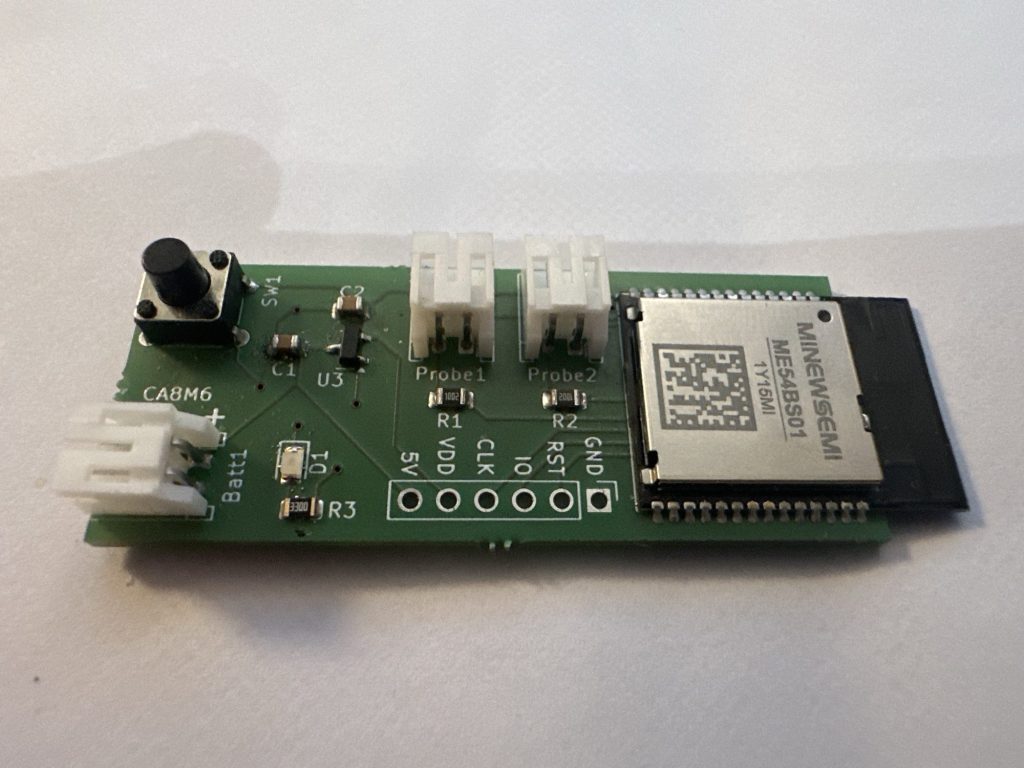
In this post, I look at sending an Identify command so I can easily determine which sensor is which. In the past, I’ve figured out how to respond to an identify command. This time, I need to send one!
This post follows on from these previous posts I’ve written about my Heating Monitor
- Building a new heating monitor using Matter and ESP32
- Matter Heating Monitor – Showing commissioned Nodes
- Matter Heating Monitor – Deleting Nodes
- Matter Heating Monitor – Showing Device Types
- Matter Heating Monitor – Supporting Setup Code
- Matter Heating Monitor – Reading temperatures
How Matter devices identify themselves
When you have lots of identical Matter devices, it can be hard to tell them apart. Let’s say you have a dozen down lights in your kitchen. How can you tell which Node 0x23 or 0x24?
Thankfully, the Matter specification includes something called the Identify Cluster.

This cluster defines how a device can identify itself. The identification process is kicked off using the Identify command.

Different devices handle the Identify request in different ways, but most just flash themselves. If you have a smart bulb, it will just flash. Smaller devices usually have an LED, which will blink.
My dual temperature sensor
I implemented support for this in my Dual Temperature sensor. When it gets an Identify Command, it blinks the onboard LED.
void AppTask::IdentifyStartHandler(Identify *)
{
	k_timer_stop(&sIndicatorTimer);
	k_timer_start(&sIndicatorTimer, K_MSEC(500), K_MSEC(500));
}

void AppTask::IdentifyStopHandler(Identify *)
{
	k_timer_stop(&sIndicatorTimer);
	gpio_pin_set_dt(&indicator_led, 0);
}
Sending the Identify Command
Unlike the other commands I’ve send from my Heating Monitor (e.g. subscribe), I couldn’t find an Identify Command in esp-matter. That meant I’d have to bake my own.
I start by copying the existing esp_matter_controller_commissioning_window_opener command. This seemed pretty small and concise and would serve as a base.
I defined one function
esp_err_t send_identify_command(uint64_t node_id);Inside that function, it did one thing: attempted to connect to the target the node. I stripped away all the existing code, leaving the blocks related being a commissioner. This function just gets an instances of the commissioner and called GetConnectedDevice
auto &controller_instance = esp_matter::controller::matter_controller_client::get_instance();

if (CHIP_NO_ERROR == controller_instance.get_commissioner()->GetConnectedDevice(node_id, &on_device_connected_cb, &on_device_connection_failure_cb))
{
    return ESP_OK;
}
GetConnectedDevice took two callbacks. On a successful connection, the Identify Command would be sent. On failure, some logging. This wasn’t a critical command, so I removed all the other callbacks up the chain.
This made sense. It essentially read; to send a command, first connect to the define and when connected, pass the command. It reminded me again how basic this all really is. Despite all the layers and wrappers and code, it essentially sends a stream of bytes form one device to another.
Inside the on_device_connected_cb function it creates an Identify command and then uses InvokeCommand to send it.
void identify_command::on_device_connected_fcn(void *context,
                                               ExchangeManager &exchangeMgr,
                                               const SessionHandle &sessionHandle)
{
    ESP_LOGI(TAG, "Established CASE session for identify command");

    Identify::Commands::Identify::Type command_data;
    command_data.identifyTime = static_cast<uint16_t>(5);
    chip::Controller::ClusterBase cluster(exchangeMgr, sessionHandle, 0);
    cluster.InvokeCommand(command_data,
                          context,
                          send_command_success_callback,
                          send_command_failure_callback,
                          chip::MakeOptional(5000));
}
The identifyTime propery is set to 5, which is the number of seconds a device should identify itself for.

Triggering the command
With my identify_command defined, I needed a way to trigger it. Obviously, this would be best done from a button in the UI. The challenge, as with HTTP APIs, was the route!
Something like “POST /api/nodes/2/identify” was ideal, but it would require a more complicated URL that I had done before. All my URLs were defined like this: “/api/nodes/*”, with the * being a wildcard. I then extracted the node id by doing a crude parse, looking for the last forward slash. This wouldn’t work for my “/identify” URL.
After a log of googling, I found this project: https://github.com/sidoh/path_variable_handlers and pulled the code across into my own project. To keep my node creation endpoint separate, I decided to use the PUT verb.
The handler then used the TokenIterator and UrlTokenBindings class to parse out the nodeId and the action. I only had Identify, so I just logged the action. The nodeId got parsed into a uint64 and then passed into my send_identify_command function!
static esp_err_t node_put_handler(httpd_req_t *req)
{
    ESP_LOGI(TAG, "URL: %s", req->uri);

    char templatePath[] = "/api/nodes/:nodeId/:action";
    auto templateItr = std::make_shared<TokenIterator>(templatePath, strlen(templatePath), '/');
    UrlTokenBindings bindings(templateItr, req->uri);

    uint64_t node_id;

    if (bindings.hasBinding("nodeId"))
    {
        node_id = strtoull(bindings.get("nodeId"), NULL, 10);
    }

    if (bindings.hasBinding("action"))
    {
        ESP_LOGI(TAG, "Action: %s", bindings.get("action"));
    }

    ESP_LOGI(TAG, "PUT node %llu", node_id);

    lock::chip_stack_lock(portMAX_DELAY);
    esp_err_t err = heating_monitor::controller::identify_command::get_instance().send_identify_command(node_id);
    lock::chip_stack_unlock();
On the ReactJS side, I added a button and a handler
const identifyNode = async () => {
   await fetch(`/api/nodes/${nodeId}/identify`, { method: 'PUT' });
}
On clicking the button, the command got delivered and the LED blinked!
Awesome!
Summary
In this post, I added a new Identify feature to my Heating Monitor. This involved defining a command and wiring up a new API route to trigger it.
All the code for my heating monitor is available at https://github.com/tomasmcguinness/matter-esp32-heating-monitor. The tag 0.0.6 was created after I added the Identify Command support.
Did you like reading this post?
If you found this blog post useful and want to say thanks, you’re welcome to buy me a coffee. Better yet, why not subscribe to my Patreon so I can continue making tinkering and sharing.
Be sure to check out my YouTube Channel too – https://youtube.com/tomasmcguinness
Thanks, Tom!


Leave a comment