
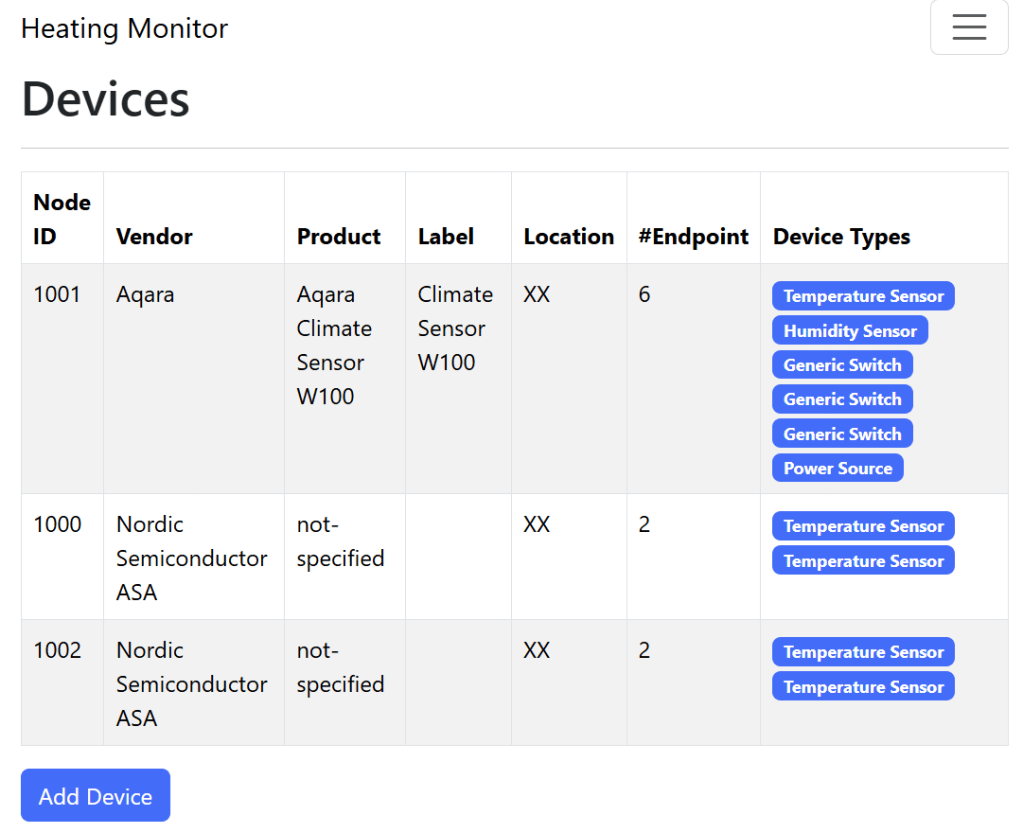
One limitation of my Pairing logic is that is assumes devices are being paired over Bluetooth. For devices already commissioned, this isn’t the case. Those devices are what’s called “On Network”, meaning they have an IP address. Discovery and commissioning is done using mDNS, rather than bluetooth.
For devices that has never been commissioned before, Bluetooth is typically used. The commissioning progress will set WiFi or Thread credentials, depending.
Matter devices can give guidance here if you’re using a QR Code. The QR code can contain information indicating if a device is on-network or can use Bluetooth. Since I’m pairing with just the setup-code, I don’t have that hint.
In this post, I’ll be improving my “Add Device” logic to support these On Network devices.
This post follows on from these previous posts I’ve written about my Heating Monitor
- Building a new heating monitor using Matter and ESP32
- Matter Heating Monitor – Showing commissioned Nodes
- Matter Heating Monitor – Deleting Nodes
- Matter Heating Monitor – Showing Device Types
- Matter Heating Monitor – Supporting Setup Code
- Matter Heating Monitor – Reading temperatures
- Matter Heating Monitor – Identifying the sensors
Bluetooth or mDNS?
When I first starting looking at this problem, I figured the CHIP SDK had a clever solution. Unfortunately, it doesn’t. It appears that you had to *tell it* how to find the device.
This is fine if using a QR Code, but for a setup code, it’s impossible to know from just the code.
Other controllers use a simple solution – let the user tell you.

Currently, all commissioning is done via pairing_ble_thread function. I needed to invoke pairing_code to perform the on-network. The main difference is that no credentials are provided to pairing_code beyond the setup code.
To mimic the other apps, I added a dropdown to my Add Device page.
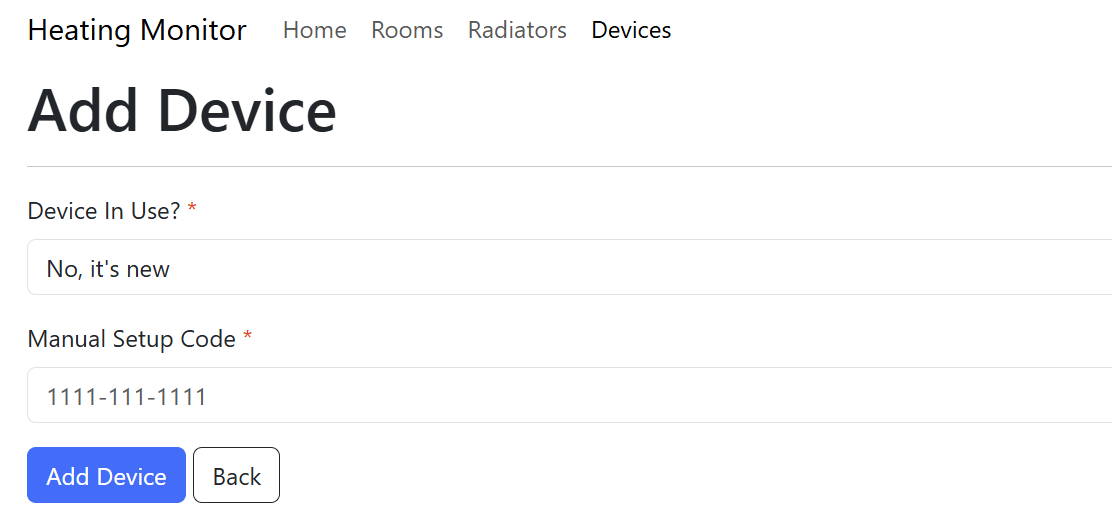
This would pass a boolean called inUse
In my handler, I would then check the value of that property and call the appropriate pairing method.
if (cJSON_IsTrue(inUseJSON))
{
    ESP_LOGI(TAG, "Using OnNetwork discovery");
    heating_monitor::controller::pairing_code(node_id, setupCode);
}
else
{
    ESP_LOGI(TAG, "Using BLE discovery");
    heating_monitor::controller::pairing_ble_thread(node_id, pincode, disc, dataset_tlvs_buf, dataset_tlvs_len);
}
My pairing code only uses the network discovery DiscoveryType::kDiscoveryNetworkOnly
To test this, I added my Aqara Climate W100. This device was already commissioned and added to my Aqara Hub.
I used the Aqara hub to generate a new Pairing Code and entered that into my Heating Monitor.
Combined method?
I think it would be possible to use a combined pairing method. That is one that uses both BLE and DNS to try and discover the node to be commissioned. The methods in the esp-matter pairing command don’t really support this, but I think it would be possible to implement.
As it stands, I don’t want to spend too much time on this particular aspect since it’s working!
Getting some more details
Now that I have more than just my radiator sensor, I spotted a potential problem. Using just the NodeId to differentiate between my sensors was really hard to use! I needed something more, like a name.
To help, I decided to use the BasicInformation cluster to fetch some more information from the devices.
This works just like the PartsList and Descriptor.
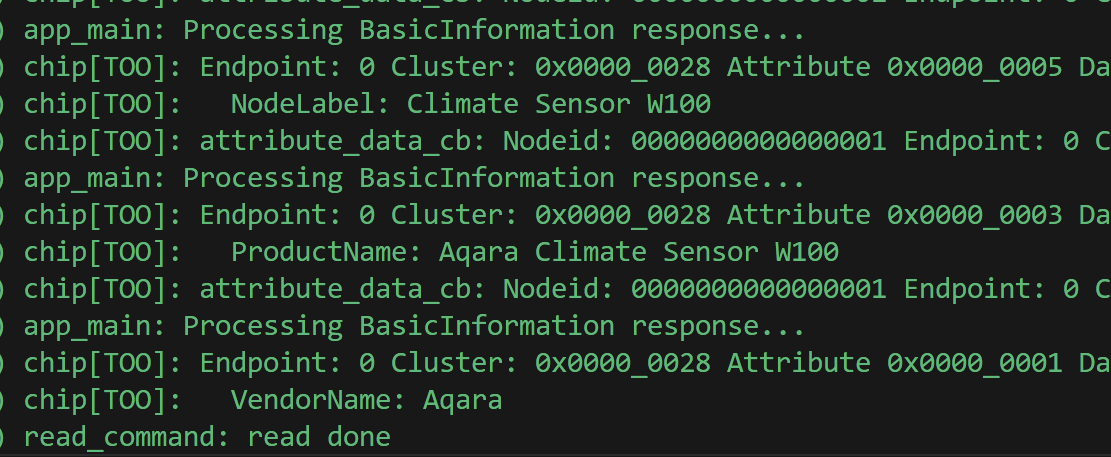
To ask for these attributes, I created a command using Paths. Instead of asking for an individual cluster and attribute in a single command, you can ask for multiple values. This is done using Paths.
ScopedMemoryBufferWithSize<AttributePathParams> attr_paths;
attr_paths.Alloc(4);

if (!attr_paths.Get())
{
    ESP_LOGE(TAG, "Failed to alloc memory for attribute paths");
    return;
}

ScopedMemoryBufferWithSize<EventPathParams> event_paths;
event_paths.Alloc(0);

attr_paths[0] = AttributePathParams(endpointId, clusterId, BasicInformation::Attributes::VendorName::Id);

attr_paths[1] = AttributePathParams(endpointId, clusterId, BasicInformation::Attributes::ProductName::Id);

attr_paths[2] = AttributePathParams(endpointId, clusterId, BasicInformation::Attributes::NodeLabel::Id);

attr_paths[3] = AttributePathParams(endpointId, clusterId, BasicInformation::Attributes::Location::Id);

esp_matter::controller::read_command *read_attr_command = chip::Platform::New<read_command>(nodeId,
    std::move(attr_paths),
    std::move(event_paths),
    attribute_data_cb,
    attribute_data_read_done,
    nullptr);

read_attr_command->send_command();
The attribute_data_cb then processes these attributes, one by one.
if (path.mAttributeId == BasicInformation::Attributes::VendorName::Id)
{
    if (data->GetType() == chip::TLV::kTLVType_UTF8String)
    {
        chip::CharSpan value;

        if (data->Get(value) == CHIP_NO_ERROR)
        {
            node->vendor_name = (char *)malloc(value.size() + 1);
            memcpy(node->vendor_name, value.data(), value.size());
            node->vendor_name[value.size()] = '\0';

            ESP_LOGI(TAG, "Vendor Name: %s", node->vendor_name);
        }
    }
}
When I tried this out, it resulted in this:

Much better!
Easier Selection
Having a full name makes it easier to see the device being selected e.g. a room’s temperature sensor.
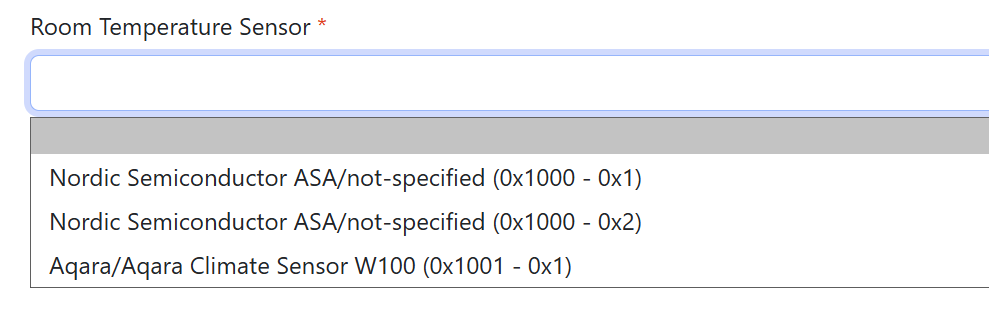
This is better than a bunch of Node Ids, but still quite difficult to understand. For example, my sensor doesn’t even have a name! I will work on improving this, but for now, it’s still a significant improvement.
Summary
In this post, I covered how to commission both new and already commissioned devices into my Heating Monitor.
I also covered how I used the BasicInformation cluster to fetch more data about the devices.
Next up is combing Room and Radiator temperatures!
Did you like reading this post?
If you found this blog post useful and want to say thanks, you’re welcome to buy me a coffee. Better yet, why not subscribe to my Patreon so I can continue making tinkering and sharing.
Be sure to check out my YouTube Channel too – https://youtube.com/tomasmcguinness
Thanks, Tom!


Leave a comment