
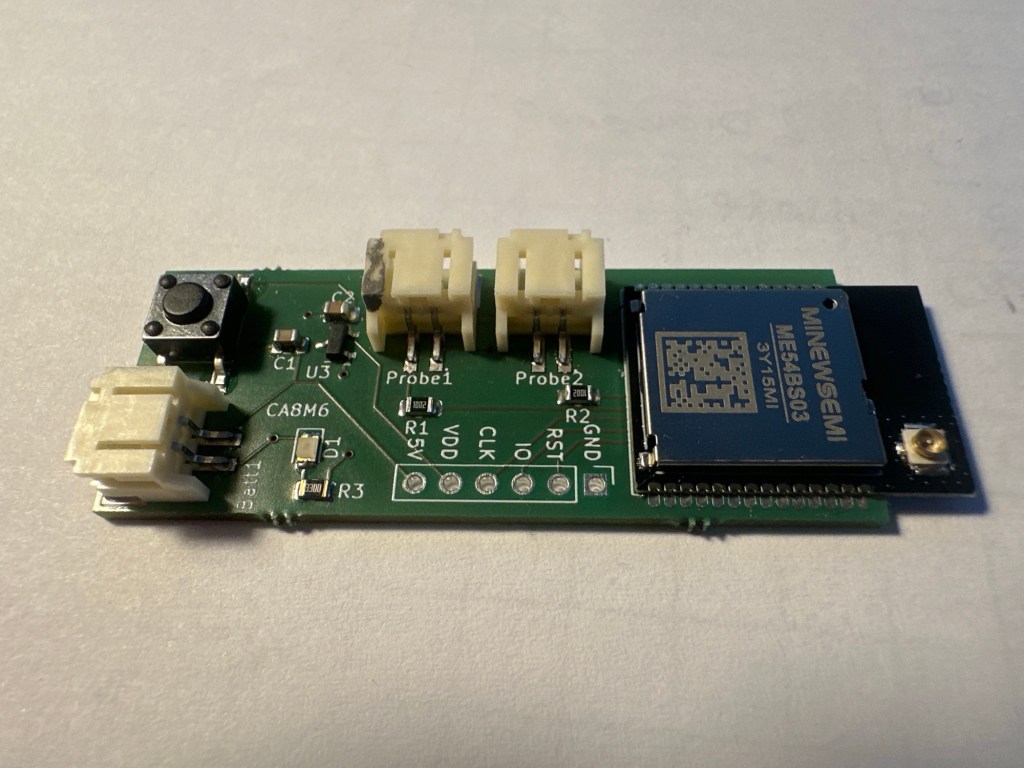
As I evolve my Dual Temperature sensor, I realised that it made sense to have a USB powered version.
I initially opted for Battery power as it eliminates the need for a USB adapter/socket near the radiator. It is also much tidier, since everything can be put into a box. The cables are already pretty messy, so everything helps.
However, some of my radiators are positioned behind furniture or located where USB power would be possible. This meant it was something I try.
Powering by USB would have two benefits:
- I’d never have to worry about the battery running out.
- The sensor could act as a Thread Router, improving my network coverage.
I immediately began thinking of a new PCB layout, but sanity prevailed and I went for a simpler option. A USB connector soldered to battery tails.
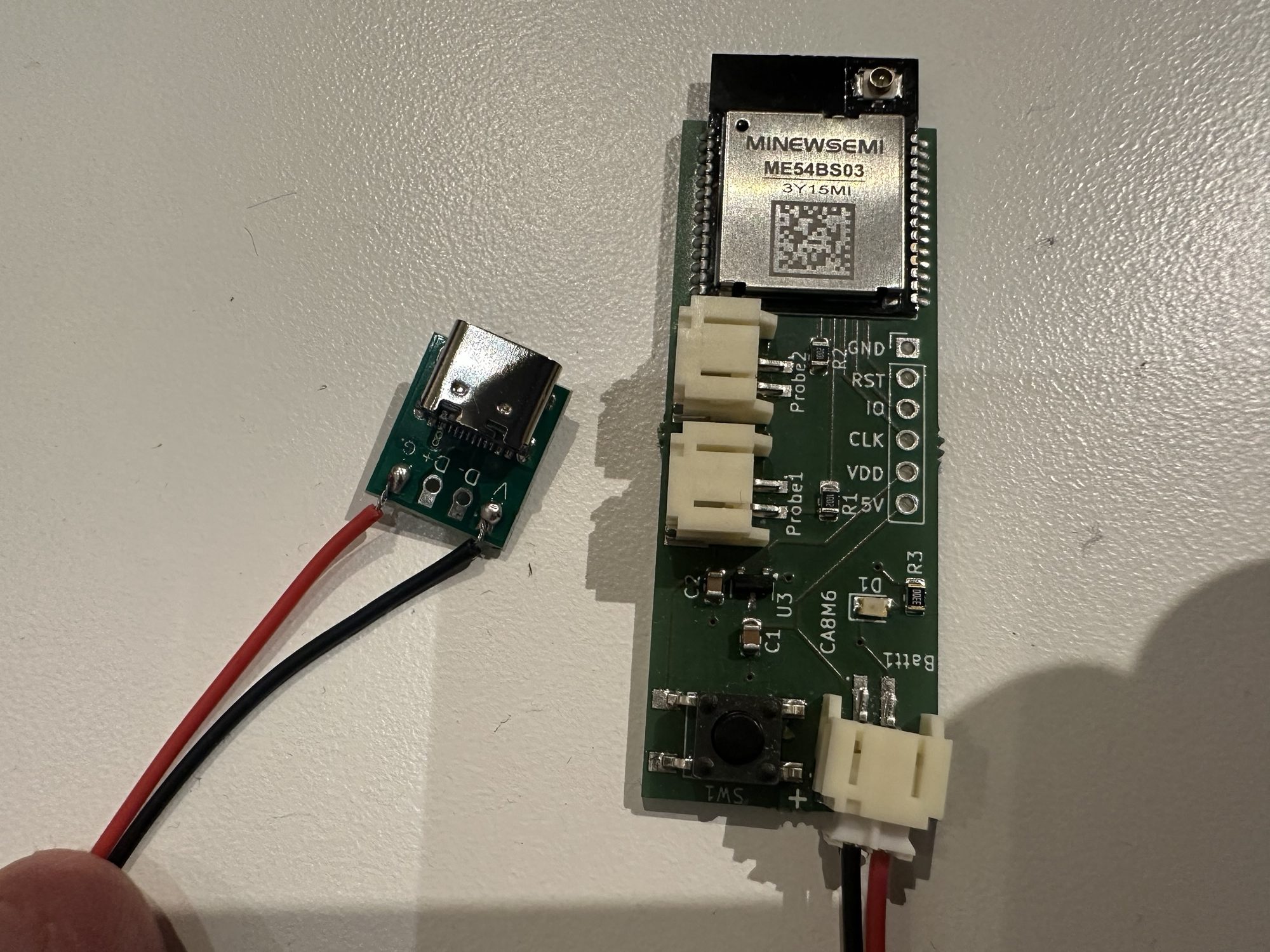
As I now had devices powered in two ways, it was the perfect opportunity to add the Power Source cluster!
What is the Power Source Cluster?
This cluster is designed to allow a device to report on its power source. This isn’t just “am I battery powered”, it’s much more than that.
Devices can indicate if they have rechargeable or replaceable batteries for example. Voltage and current can be read. A node can indicate if it’s AC or DC or how much power is left in the battery.
For my needs, I wanted to start with a simple: Am I battery powered or USB powered?
Adding Power Source
First, launch the zap-gui
west zap-guiI then enabled the Power Source cluster on Endpoint #0, which is the root endpoint.
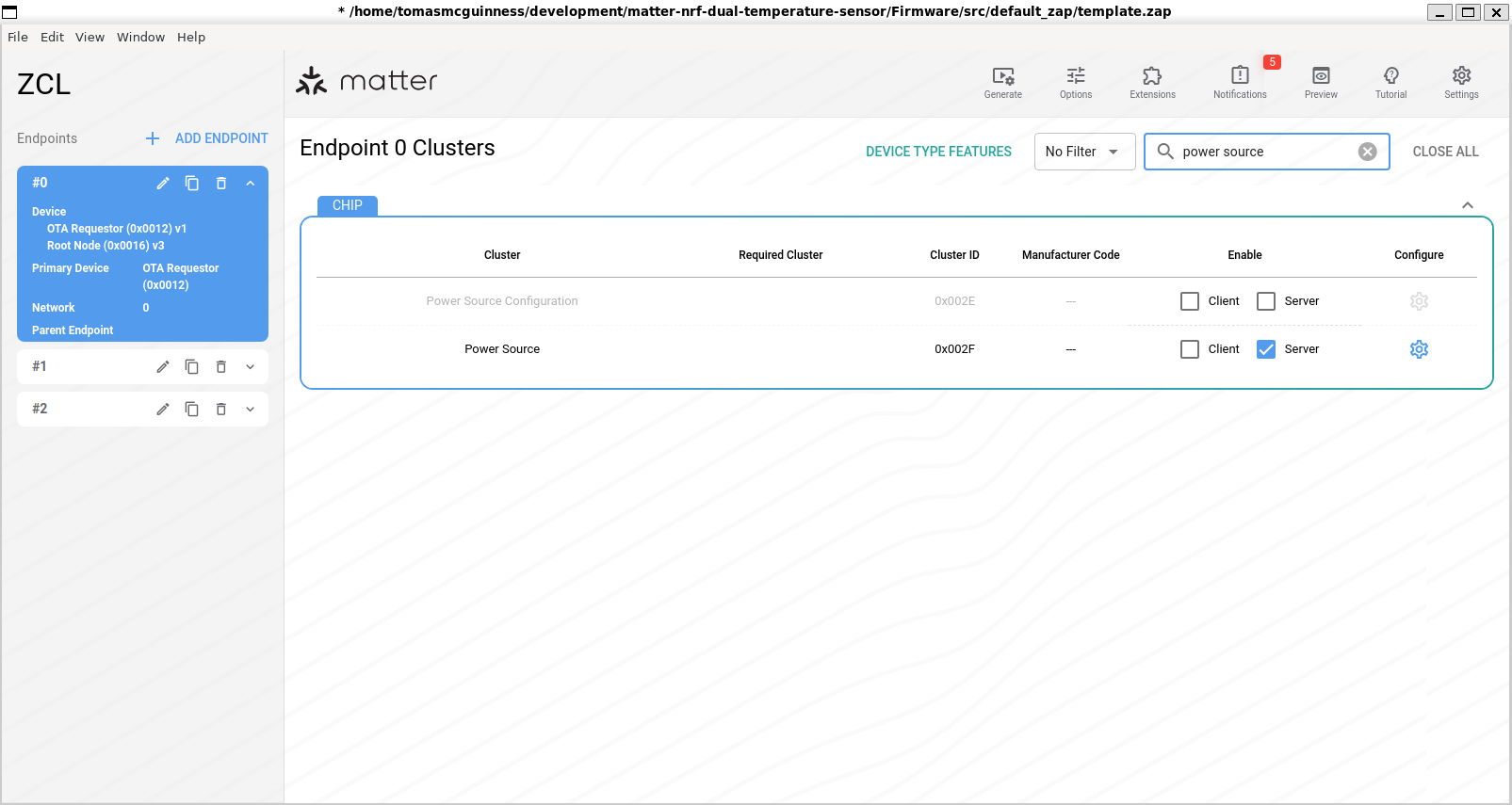
One I had saved this file, I regenerate all the code files
west zap-generateWith the ZAP configuration present, I now needed to configure the Power Source Cluster itself.
To start, we must first indicate if the device is battery powered, mains powered or both. This is done using the Features on the Cluster. For simplicity, I’m going to focus on the most basic implementation which is BAT or WIRED.

The Feature map is used since this type of information doesn’t change. Features are essentially a contract, which indicate what a particular endpoint can do.
As my device can be either WIRED or BAT, I needed to set this value at runtime. To accomplish this, I added a callback emberAfPowerSourceClusterInitCallback. This is a special callback within the CHIP SDK, which is invoked each time a cluster is instantiated.
I took a very basic approach to this, using the CONFIG_PM_DEVICE configuration item as a proxy for battery power!
void emberAfPowerSourceClusterInitCallback(chip::EndpointId endpoint)
{
  uint32_t featureMap = 0;

#ifdef CONFIG_PM_DEVICE
  featureMap = 0x01; // BAT
#else
  featureMap = 0x00; // WIRED
#endif

  Clusters::PowerSource::Attributes::FeatureMap::Set(endpoint, featureMap);
If CONFIG_PM_DEVICE is on, the BAT feature flag will be set, otherwise it will be WIRED.
Attributes for the features
Regardless of the Features, some attributes on this cluster are mandatory.
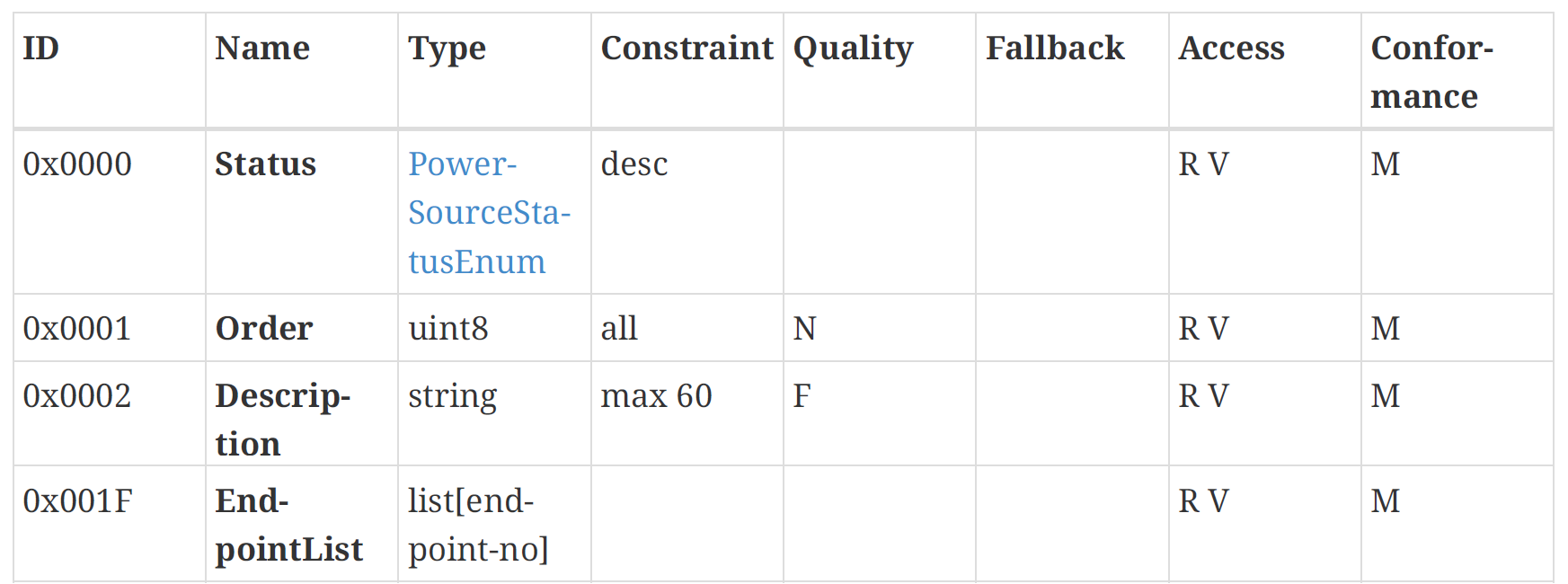
We populate these like so
PowerSource::Attributes::Status::Set(endpoint, PowerSourceStatusEnum::kActive);

PowerSource::Attributes::Order::Set(endpoint, 0);

PowerSource::Attributes::Description::Set(endpoint,  chip::CharSpan::fromCharString("Power"));
We leave EndpointList empty since the Power Source applies to all endpoints.
Other attributes become mandatory depending on the feature flags. For example, when the BAT feature is enabled, three attributes are mandatory:
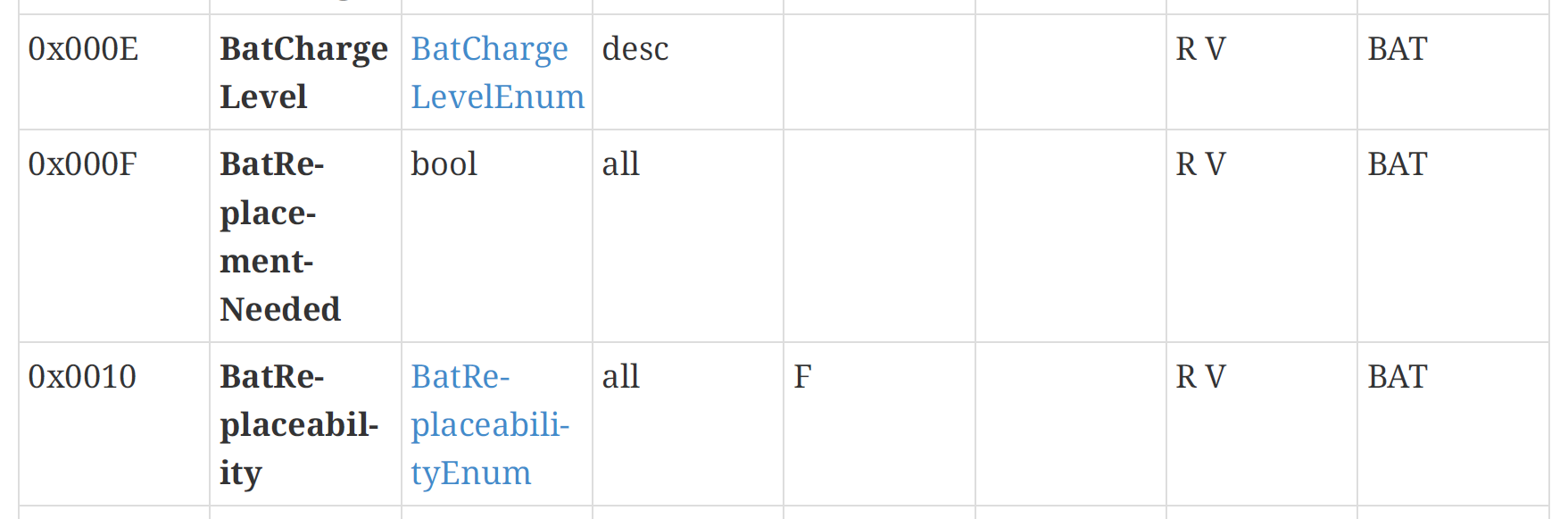
For WIRED, there is just a single mandatory attribute

To ensure these attributes are present in the Cluster, I use the zap-gui to add them.
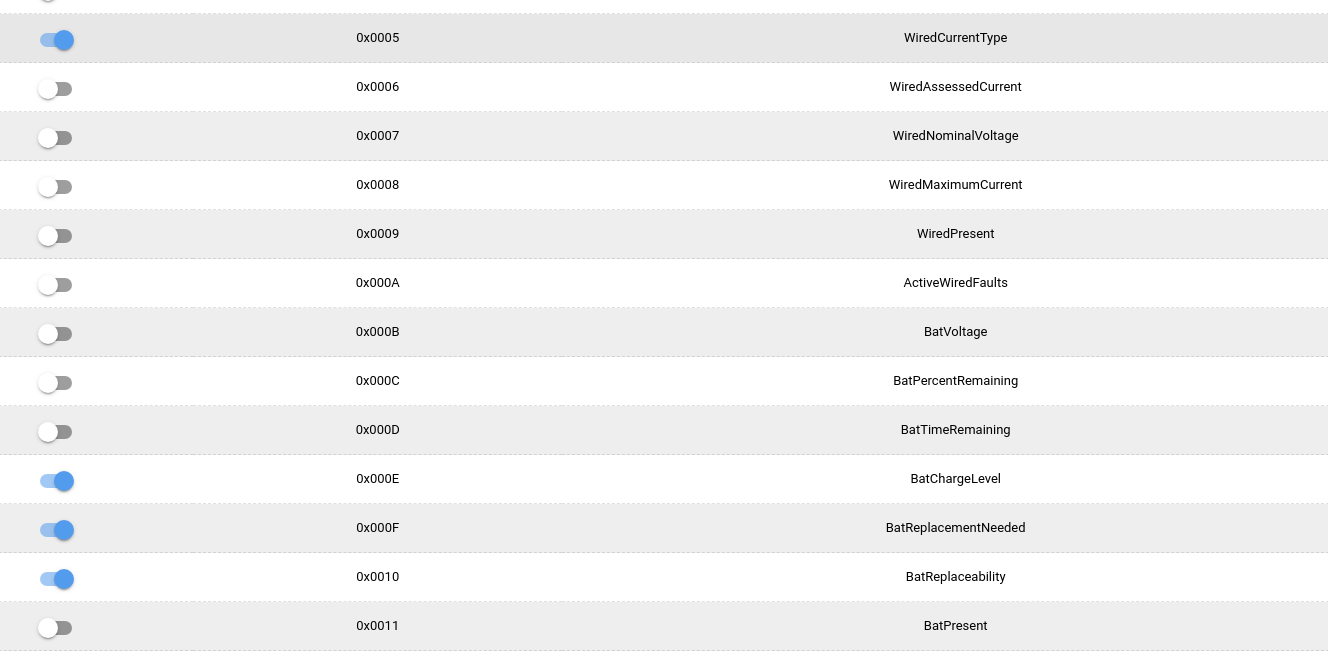
*Strictly speaking* this is the wrong approach, since these Attributes will be present *regardless* of the Feature flag.
The alternative would be having two ZAP configuration files, one for battery and one for wired. I don’t want the hassle of that right now.
These four attributes are configured in the same fashion as the common mandatory ones.
#ifdef CONFIG_PM_DEVICE
  Clusters::PowerSource::Attributes::BatChargeLevel::Set(endpoint, Clusters::PowerSource::BatChargeLevelEnum::kOk);
  Clusters::PowerSource::Attributes::BatReplacementNeeded::Set(endpoint, false);
  Clusters::PowerSource::Attributes::BatReplaceability::Set(endpoint, Clusters::PowerSource::BatReplaceabilityEnum::kUserReplaceable);
#else
  Clusters::PowerSource::Attributes::WiredCurrentType::Set(endpoint, Clusters::PowerSource::WiredCurrentTypeEnum::kDc);
#endif
I’m not measuring the battery charge level, so I just report OK for battery devices. For Wired, we use DC power.
Whilst it’s not strictly correct to have attributes enabled when the corresponding feature isn’t turned on, it’s doesn’t matter. A controller should only query for attributes it knows are there.
Using the Cluster
To grab this basic information and display it in my Heating Monitor, I had to make two small changes.
First was asking for the FeatureMap attribute of the PowerSource Cluster.
AttributePathParams(PowerSource::Id, PowerSource::Attributes::FeatureMap::Id);When this read operation returns, I then query the state of the FeatureMap
uint32_t feature_map;
chip::app::DataModel::Decode(*data, feature_map);

bool is_wired = feature_map & (uint32_t)PowerSource::Feature::kWired;
if (is_wired)
{
    ESP_LOGI(TAG, "PowerSource: WIRED");
}
else if ((feature_map & (uint32_t)PowerSource::Feature::kBattery))
{
    ESP_LOGI(TAG, "PowerSource: BAT");
}
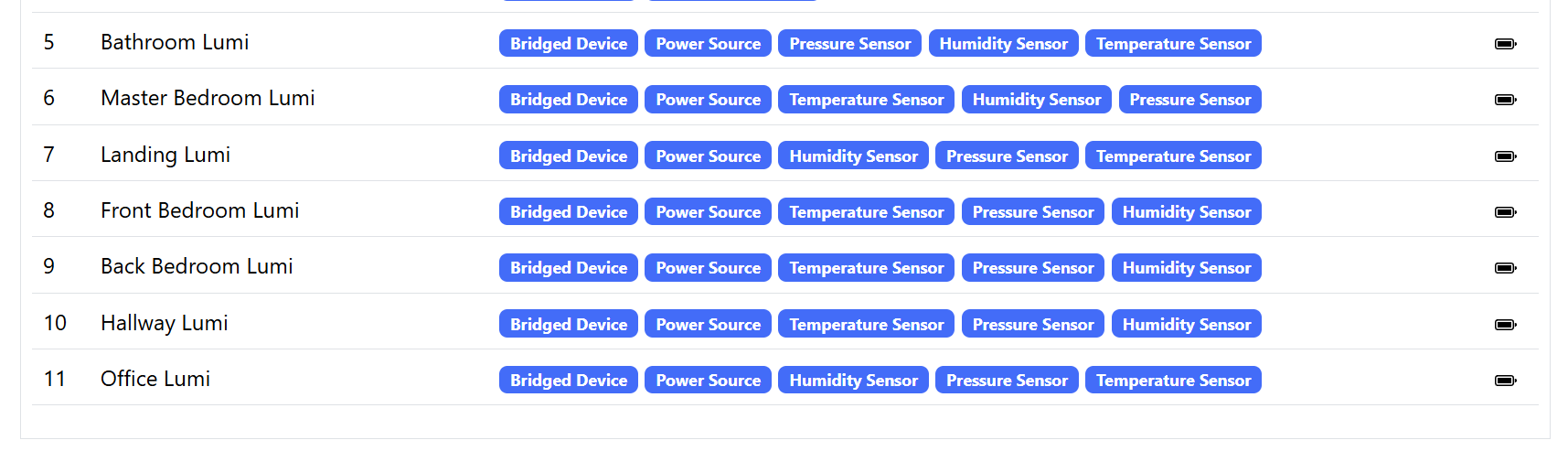
I can then use that information to display if a device is battery powered, for example!
A better way?
Whilst this approach, using a single ZAP file is fine, it’s not the *right* way to do it.
At this point, I reconsidered my position and decided that learning how to manage different ZAP files would be helpful. I knew, for example, that I’d need to tinker with ICD clusters too.
Turns out it was more straight-forward than I expected.
First, I created copies of the default_zap folder
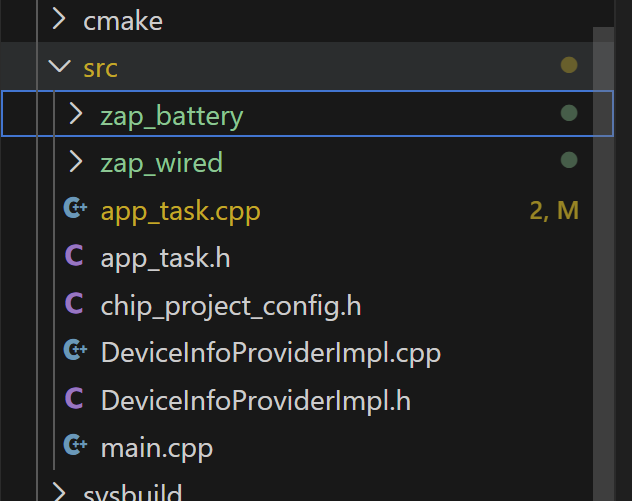
I then used the zap-tool to configure the template.zap file in each folder accordingly. This is done by passing the file name
west zap-gui --zap-file src/zap_battery/template.zapI used it to setup the “Features” for the Power Source.
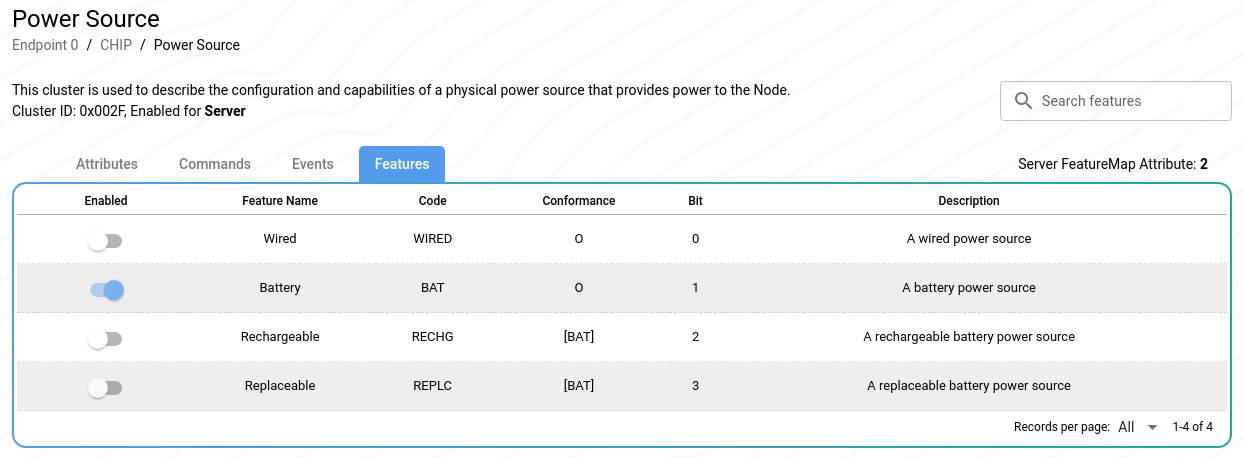
I then run the generate using the same --zap-file argument
west zap-generate --zap-file src/zap_battery/template.zapWhen compiling, I needed to tell the compiler which zap file to use. This is done using a configuration item in the prj files! So, in my prj_battery.conf file, I have this configuration, pointing to the right zap file.
CONFIG_NCS_SAMPLE_MATTER_ZAP_FILE_PATH="${APPLICATION_CONFIG_DIR}/src/zap_battery/template.zap"I made a note at this point to remove all this NCS_SAMPLE stuff, but for now it works.
I finished up by removing my code that configured the FeatureMap attribute. I leave that to the ZAP file now!
Summary
In this post, I covered the basics of the Matter Power Source cluster and how to use multiple ZAP files.
In a future revision of my sensor, I will include a way to read the battery voltage. That value will then get added to the Power Source cluster, so it can share it.
Did you like reading this post?
If you found this blog post useful and want to say thanks, you’re welcome to buy me a coffee. Better yet, why not subscribe to my Patreon so I can continue making tinkering and sharing.
Be sure to check out my YouTube Channel too – https://youtube.com/tomasmcguinness
Thanks, Tom!
 @tomasmcguinness
Leave a comment